
























The JPFO Help Page


Some "Tech" Help for Those Few Who Might Need It
| Links | Copy & Paste | Download & Save | View & Play | File Organizing | iPhone Video | Email Alerts Help |
Additions on other pages - | Burning a DVD | Bit Torrent downloads | JPFO FAQ Page | JPFO Store help.

This page is provided just to assist a few with the use of links, downloading and saving files and more. Also signing up for email alerts. Do be sure to make full use of the JPFO search option - on homepage and at top right of most newer look page's header - be imaginative and find much of the "buried" material.
Due to the many years this site has been operational, there are numerous earlier pages still based on an old design, and within which there may be dead/expired links although often much valuable information. Some older pages contain obsolete offers. Do inform us if important dead links are found, or display problems. Just include the URL (address) of page concerned and the dead link URL itself so we can investigate and if relevant, your browser type and version.
First - Links ....
On occasions links can be very long and when sent via email, as plain text, can often be broken due to lines word-wrapping. When this happens, the email program's ability to show the whole link can fail, such that what appears as a complete link on one line, in fact has more that is required 'lost' on the line below. If therefore the unsuspecting user clicks on the incomplete link, they will get a browser error. The answer?
Using copy and paste (see next section below) - the idea is to select all of the link if possible and paste that into the browser address window and then "Go". If however the 'lost' part will not include in the selection as is often the case, copy and paste the first part and then come back to copy and paste the 'lost' part, to add to the browser address - thus completing the link's integrity.
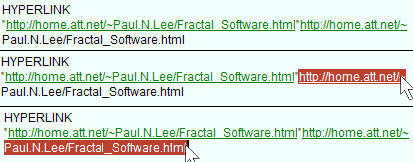 This picture on the right shows a sample from an email message - the top section shows how a link was sent as a double - sometimes happens. Clicking on the first full link (ending in 'html', before the next 'http') would work, however the repeat of the link is broken by word-wrap. Were we to have to use the second link, then two copying stages are needed. In the center section we have highlighted/selected the first portion of the link … which we copy and then paste to the browser address bar. The third portion shows us coming back to select the last part of the link - which we again paste to browser, adding to the other part and completing the link - then we can hit ''go'' and it should work as intended and expected, taking care to not introduce any spaces. The complete link after this double 'copy'n'paste'' would show the full URL - http://home.att.net/~Paul.N.Lee/Fractal_Software.html
Oh and one other thing with links ........ it is not uncommon for a link to accidentally include adjacent text ...... for example using the link above we might have "http://home.att.net/~Paul.N.Lee/Fractal_Software.html," or even "http://home.att.net/~Paul.N.Lee/Fractal_Software.html-- blah blah....". In the first case a period immediately follows "html" and if the link is automatically parsed and that is included, then the link if clicked on will not be valid - likewise with the second example where two dashes following "html" could also be included and so again render the link invalid if clicked on. Notice the link's underlines continue to include the unwanted characters - the answer here is again a simple selection excluding those parts, and a copy'n'paste of the real link content into your browser.
Small addition regarding links you may find on very old pages - alerts in particular. The site contains about 2,500 files and many go back quite a few years. At the time they were written and posted links would probably have been all valid - however over time outside sites can delete their own pages and also even with JPFO itself, links to other pages may have become obsolete. So while we apologize for any dead links in old articles - they probably will occur.
"Copy and paste" - how?
Again most people probably know about this and we have no wish to insult intelligences but, to make sure let's run through real quick. 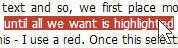 Here we are talking about copying text and so, we first place mouse cursor one end of the required text, then left click the mouse and drag across until all we want is highlighted then release mouse button (see image on left). Might be blue for most but perhaps you have your own chosen color for this - I use a red.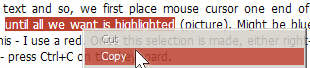
Once this selection is made, either right-click the mouse and select "copy" from the context menu, or - press Ctrl+C on the keyboard. Picture to right shows the context menu method.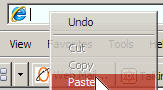
Your text is now on the Windows "clipboard" - stored. To place it somewhere, we place a curson on the target area (maybe your browser address bar although here this is certainly not a link!) .... and then either right click the mouse and select "paste" - or use Ctrl+V on the keyboard. Easy!
Downloading and saving files - 
This is relevant mainly to saving of images, document files and media files. A picture will usually have the "JPG" extension, most documents will be "PDF" or "DOC", and media files could be MP3 sound files, or videos with extensions such as "WMV", "MOV", "RM", "MPG". With pictures it is often possible if a displayed image is what you want, simply place the mouse cursor over the image and right click - selecting then from the dropdown context menu "save picture/image as" (see picture to right, where we go to save the JPFO logo) and putting the saved image somewhere convenient where it can be stored and found again.
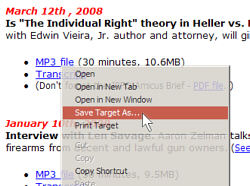
Other saves however will be from links, and the point is there is no need to actually click on the link in most cases. On JPFO, if a link has at the end a file showing any of the above mentioned extensions then, right click with the mouse cursor over the link and choose "save target as" - in the Internet Explorer context menu anyways - (see picture to left where we target an MP3 sound file). This will then allow you to download the file and save to a location of choice, thus allowing for viewing/playing of the file later when convenient.
♦ ♦ A late addition regarding file downloads on a Macintosh .........
While with a PC a right click can give a context menu with a choice to "save target as" - on the Mac the method is reputed to be the use of the CTRL key while clicking on a link of download material ..... this should then bring up the Mac context menu - from which a suitable choice can be made. It has also been learnd that .WMV files can play on a Mac if you install "flip4macwmv".
Additions on other pages - | Burning a DVD | Bit Torrent downloads |
Viewing and playing files -
Your computer probably has enough basic options for viewing images and playing sound or video but - usually these are not enough. Let's mention some easy to find applications you can download and install to expand your options, for free!
For images nothing is more convenient as a general purpose viewer than Irfanview ( http://www.irfanview.com/ ) - a small and free program, worth its weight in gold. In fact if the available plugins are installed too then it can play sound files and some videos too.
For video and sound there are two or three options better than Windows Media Player. "ALShow" is excellent ( http://www.altools.com/ALTools/ALShow.aspx ), then there is "Windows Media Player Classic" ( http://www.free-codecs.com/download/Media_Player_Classic.htm ) - nothing to do with Microsoft actually but a free package containing, from this link, many needed codecs for playing most media files. Then there is "VLC Media Player" ( http://www.free-codecs.com/download/VideoLAN.htm ) ...... another free player but one that can often manage files others will not always play.
If you add these few programs to your armory you will be well prepared to hear and view most things that you may have kept - otherwise perhaps viewing on line as ''streaming'' media just once is enough.
Note - with YouTube, Google and others commonly showing videos now in .FLV format, it is worth noting that there are various ways of ''snagging'' these videos so as to keep a copy for later viewing. A search on Google using keywords such as "flv download", "saving flv files" for example, should find some free small applications for the purpose. There are also at least two free FLV players available - a search for "flv player 2.0" should find that easily.
Finally - how you organize your files!!
I know many people who only use either the default locations such as "My Pictures", My Documents" etc or even throw everything on their 'desktop' - things can get confusing and crowded! Some suggestions for you. Get used to exploiting 'Windows Explorer' or 'My Computer' - and see your hard drive as a big filing cabinet - one in which you have folders and, folders within folders. If the hierarchy is exploited to the full then you can compartmentalize your file storage such that retrieval is much easier. In fact a good start is to make many sub folders within "My Pictures" and "My Documents" and name them to suit specific categories. Believe me, even that helps a lot.
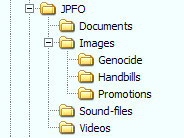 Let's give an example of this 'hierarchy' - using a picture to illustrate (see image to right), which assumes you can set up your system to view files properly! I set up XP as I want it and it is more like Windows 2000 classic look, with personal refinements.
Imagine your file storage as if it were a family tree ........ so you have a main folder which might be called "JPFO" ..... inside that perhaps you can add folders such as "JPFO-pictures", "JPFO-videos", "JPFO sound-files", "JPFO-documents" etc. You then wish to have more than one type of picture, so a "JPFO-pictures" folder could well contains sub-folders called "Genocide", "Promotions", "Handbills" and so on ....... all making for a more structured method to store and most of all - make for easy location of a file when wanted.
To those who know all this, apologies though I doubt you stayed on this page long! To those few who perhaps struggle a bit, let's hope this eases your pain just a little.
iPhones and video playing -
We received a technical query on this matter and on looking into it see that the iPhone should play MP4 format videos, which is the Macintosh standard. Our two main download pages .... "2A Today for The USA" and "No Guns for Negroes" - both have MP4 files available for download. The older MOV format should also work it appears.
However, it may be that some iPhone owners wish to have more flexibility and so a web search seems to find a number of software applications which can be obtained in order to allow conversions between the most common formats. One such example we found was "PhoneVideoConverter" but there are many. Some it seems will permit conversion within the phone, other options to consider are converters for changing other file types to MP4 within a computer, such that the MP4 can then be put on the iPhone - most work between WMV, AVI, FLV, MP4, MOV etc. If any iPhone users have further helpful information please email JPFO.
For reference (from Apple site) - iPhone video specifications are ........
Video formats supported: H.264 video, up to 1.5 Mbps, 640 by 480 pixels, 30 frames per second, Low-Complexity version of the H.264 Baseline Profile with AAC-LC audio up to 160 Kbps, 48kHz, stereo audio in .m4v, .mp4, and .mov file formats; H.264 video, up to 2.5 Mbps, 640 by 480 pixels, 30 frames per second, Baseline Profile up to Level 3.0 with AAC-LC audio up to 160 Kbps, 48kHz, stereo audio in .m4v, .mp4, and .mov file formats; MPEG-4 video, up to 2.5 Mbps, 640 by 480 pixels, 30 frames per second, Simple Profile with AAC-LC audio up to 160 Kbps, 48kHz, stereo audio in .m4v, .mp4, and .mov file formats
A short mention regarding signing up for JPFO Alerts -
Sign up for alerts from either the JPFO homepage - lower portion of left column - or alternatively - on any of our alerts archive pages - where the option appears at the top. This is the current archive page for alerts.
It has been found that users of "Adblock Plus" may have to disable it, to permit a successful entry and submission. Our bulk provider currently is aweber.com - so you will receive emails from them after sign up. First will be a request for confirmation so they know they will not be spamming you - just respond to the link they give at the bottom of the email, and second, do make sure you put aweber.com on your spam filter 'allowed' list ("White List") or you may not receive the alerts.
May we assure all subscribers that our alerts list is totally secure and JPFO does not divulge such information.